|
|
| Line 1: |
Line 1: |
| {{ARM/breadcrumb}} | | {{ARM/breadcrumb}} |
| <div class="infobox"> | | <div class="infobox"> |
| {|class="table" | | {| class="table" |
| !colspan="2" class="title"|Raspberry Pi 3 Family | | ! colspan="2" class="title" | Raspberry Pi 3 family |
| |- | | |- |
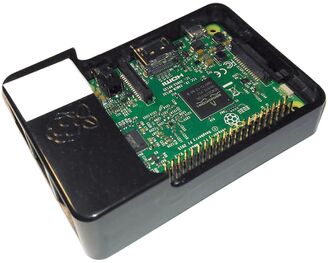
| |colspan="2"|[[File:raspberry_pi_3_glamour.jpg|frameless|256px|A Raspberry Pi 3 with enclosure.]] | | | colspan="2" | [[File:raspberry_pi_3_glamour.jpg|frameless|256px|A Raspberry Pi 3 with enclosure.]] |
| |- | | |- |
| !Manufacturer | | ! Manufacturer |
| |Raspberry Pi Foundation | | | Raspberry Pi Ltd |
| |- | | |- |
| !Architecture | | ! Architecture |
| |AArch64 | | | AArch64, with ARMv7 as a best-effort alternative |
| |- | | |- |
| !Bootloader | | ! Boot method |
| |Custom or U-Boot | | | Raspberry Pi firmware, U-Boot, and extlinux |
| |- | | |- |
| !Boot order
| | ! SoC |
| |SD, USB*
| | | BCM2837 or BCM2837B0 |
| |-
| |
| !Maintainer
| |
| |
| |
| |-
| |
| !colspan="2" class="title"|Raspberry Pi 3B
| |
| |-
| |
| !SoC | |
| |BCM2837 | |
| |-
| |
| !colspan="2" class="title"|Raspberry Pi 3B+
| |
| |-
| |
| !SoC
| |
| |BCM2837B0
| |
| |} | | |} |
| </div> | | </div> |
| The Raspberry Pi family of devices is a series of single-board computers made by the Raspberry Pi Foundation. They are all based on Broadcom System-on-a-chip (SOCs).
| |
|
| |
|
| == Status ==
| | The '''Raspberry Pi 3''' works with the generic AArch64 SD image. AArch64 is the usual choice because NixOS publishes binary packages for it. ARMv7 remains buildable, but NixOS does not publish an ARMv7 binary cache. Import the Raspberry Pi 3 profile from <code>nixos-hardware</code> for the Raspberry Pi downstream kernel and board defaults. |
|
| |
|
| The default Linux kernel in use, is the mainline Linux kernel, and not the Raspberry Pi Foundation's fork. This could reduce compatibility with some add-on boards or third-party libraries<sup>[expanded explanation needed]</sup>.
| | == Installation == |
| | |
| The Raspberry Pi 3 Family is only supported as '''AArch64'''. Use as armv7 is community supported.
| |
| | |
| == Board-specific installation notes == | |
| | |
| First follow the [[NixOS_on_ARM#Installation|generic installation steps]] to get the installer image and install using the [[NixOS_on_ARM#NixOS_installation_.26_configuration|installation and configuration steps]].
| |
| | |
| {{warning|1=To avoid running out of memory and ''failing'' to build, it is advised to create a swap file (see e.g. [https://wiki.archlinux.org/title/swap#Swap_file_creation]) ''before'' executing <code>nixos-rebuild</code> for the first time.}}
| |
| | |
| === Raspberry Pi 3B and 3B+ ===
| |
| | |
| Both the AArch64 and ARMv7 images boot out-of-the-box. Using the 64-bit AArch64 image is highly recommended, as the availability of binaries is much better and allows the use of the 64-bit instruction set.
| |
| | |
| For the UART console, edit <code>/extlinux/extlinux.conf</code> on the main partition of the SD card to set <code>console=ttyS1,115200n8</code> in the kernel boot parameters, making sure to replace the existing <code>console=ttyS0,115200n8</code> parameter. Use the following GPIO Pins with an USB-TTL connector:
| |
| <syntaxhighlight>
| |
| GND - 3rd in top row, black cable
| |
| GPIO 14 TXD - 4th in top row, white cable
| |
| GPIO 15 RXD - 5th in top row, green cable
| |
| </syntaxhighlight>
| |
| Use <code>nix-shell -p screen --run "screen /dev/ttyUSB0 115200"</code> (or <code>nix run nixpkgs#screen -- /dev/ttyUSB0 115200</code> if you're using nix flakes) to connect to the console.
| |
| {{note|The mainline kernel (tested with nixos kernel 4.18.7) [https://github.com/raspberrypi/linux/wiki/Upstreaming#downstream-drivers does not include support for cpu frequency scaling] on the Raspberry Pi. To get higher clock speed, set [https://www.raspberrypi.org/documentation/configuration/config-txt/overclocking.md <code><nowiki>force_turbo=1</nowiki></code>] in <code>/boot/config.txt</code> with {{nixos:option|boot.loader.raspberryPi.firmwareConfig}}}}
| |
| | |
| <syntaxhighlight lang=nix>
| |
| {
| |
| hardware.enableRedistributableFirmware = true;
| |
| networking.wireless.enable = true;
| |
| }
| |
| </syntaxhighlight>
| |
|
| |
|
| == Tools == | | Use the generic AArch64 SD image described on the [[NixOS on ARM/Raspberry Pi#Installation|family page]]. It contains Raspberry Pi 3 firmware, device trees, U-Boot, and an extlinux configuration.<ref name="generic-image">[https://github.com/NixOS/nixpkgs/blob/master/nixos/modules/installer/sd-card/sd-image-aarch64.nix Nixpkgs generic AArch64 SD image module]</ref> In a flake, import <code>nixos-hardware.nixosModules.raspberry-pi-3</code>. With channels, import <code><nixos-hardware/raspberry-pi/3></code>. The [[NixOS on ARM/Raspberry Pi#Board profiles|family page]] provides complete examples and explains that a profile does not partition storage or install U-Boot. |
|
| |
|
| The raspberry tools are available in the <code>libraspberrypi</code> package and include commands like <code>vcgencmd</code> to measure temperature and CPU frequency.
| | == Profile defaults == |
|
| |
|
| == Audio == | | The profile selects a pinned kernel from Raspberry Pi's downstream Linux tree. It disables GRUB and enables generation of <code>/boot/extlinux/extlinux.conf</code>. The shared <code>config.txt</code> defaults request full VC4 KMS, and the profile adds both serial and display kernel-console parameters.<ref name="profile">[https://github.com/NixOS/nixos-hardware/blob/master/raspberry-pi/3/default.nix nixos-hardware Raspberry Pi 3 profile]</ref><ref name="config-defaults">[https://github.com/NixOS/nixos-hardware/blob/master/raspberry-pi/common/config-txt-defaults.nix nixos-hardware Raspberry Pi config.txt defaults]</ref> |
|
| |
|
| In addition to the usual config, you will need to enable audio support explicitly in the firmwareConfig.
| | The kernel package installs BCM2837-named copies of device trees for Pi 3A+, Pi 3B, Pi 3B+, CM3, and Zero 2 W. These files provide boot-time device-tree coverage. They do not create a separate Zero 2 W profile or imply equal hardware test coverage for every variant. |
|
| |
|
| {{file|/etc/nixos/configuration.nix|nix|<nowiki>
| | See [[NixOS on ARM/Raspberry Pi#Board profiles|Board profiles]] for Wi-Fi firmware requirements on custom systems. |
| sound.enable = true;
| |
| hardware.pulseaudio.enable = true;
| |
|
| |
|
| boot.loader.raspberryPi.firmwareConfig = ''
| | == Serial console == |
| dtparam=audio=on
| |
| '';
| |
| </nowiki>}}
| |
| == Serial console== | |
|
| |
|
| Your <code>configuration.nix</code> will need to add <code>console=ttyS1,115200n8</code> to the <code>boot.kernelParams</code> configuration to use the serial console.
| | The profile adds these kernel parameters: |
|
| |
|
| {{file|/etc/nixos/configuration.nix|nix|<nowiki>
| | <syntaxhighlight lang="nix"> |
| { config, pkgs, lib, ... }:
| |
| { | | { |
| boot.kernelParams = [ | | boot.kernelParams = [ |
| "console=ttyS1,115200n8" | | "console=ttyS0,115200n8" |
| ];
| | "console=tty0" |
| }
| |
| </nowiki>}}
| |
| | |
| If the Raspberry Pi downstream kernel is used the serial interface is named <code>serial0</code> instead.
| |
| | |
| === Early boot ===
| |
| | |
| Raspberry Pi 3's UART rate is tied to the GPU core frequency, set by default to 400MHz on Raspberry Pi 3 and later. This results in garbled serial output in bootloaders. Setting <code>core_freq=250</code> in <code>config.txt</code> solves this issue (as per [https://forums.raspberrypi.com/viewtopic.php?p=942203#p942203 thread on the Raspberry Pi forum]).
| |
| | |
| It can be done declaratively as such:
| |
| | |
| {{file|/etc/nixos/configuration.nix|nix|<nowiki>
| |
| { config, pkgs, lib, ... }:
| |
| {
| |
| boot.loader.raspberryPi = {
| |
| enable = true;
| |
| version = 3; | |
| firmwareConfig = ''
| |
| core_freq=250
| |
| '';
| |
| };
| |
| }
| |
| </nowiki>}}
| |
| | |
| Note that this [https://github.com/RealVNC/raspi-documentation/blob/fc6b4711f91791db7acd19ae743fcfddc9c89546/configuration/config-txt/overclocking.md#overclocking-options may have a negative impact on performance]:
| |
| | |
| <blockquote>Frequency of the GPU processor core in MHz. It has an impact on CPU performance because it drives the L2 cache and memory bus.</blockquote>
| |
| | |
| == Bluetooth ==
| |
| | |
| The bluetooth controller is by default connected to the UART device at <code>/dev/ttyAMA0</code> and needs to be enabled through <code>btattach</code>:
| |
| | |
| {{file|/etc/nixos/configuration.nix|nix|<nowiki>
| |
| { pkgs, ... }:
| |
| {
| |
| systemd.services.btattach = {
| |
| before = [ "bluetooth.service" ];
| |
| after = [ "dev-ttyAMA0.device" ];
| |
| wantedBy = [ "multi-user.target" ];
| |
| serviceConfig = {
| |
| ExecStart = "${pkgs.bluez}/bin/btattach -B /dev/ttyAMA0 -P bcm -S 3000000";
| |
| };
| |
| };
| |
| }
| |
| </nowiki>}}
| |
| == Camera ==
| |
| | |
| For the camera to work, you will need to add the following code to your configuration.nix:
| |
| | |
| {{file|/etc/nixos/configuration.nix|nix|<nowiki>
| |
| { config, pkgs, lib, ... }:
| |
| {
| |
| boot.loader.raspberryPi.enable = true;
| |
| # Set the version depending on your raspberry pi.
| |
| boot.loader.raspberryPi.version = 3;
| |
| # We need uboot
| |
| boot.loader.raspberryPi.uboot.enable = true;
| |
| # These two parameters are the important ones to get the
| |
| # camera working. These will be appended to /boot/config.txt.
| |
| boot.loader.raspberryPi.firmwareConfig = ''
| |
| start_x=1
| |
| gpu_mem=256
| |
| '';
| |
| }
| |
| </nowiki>}}
| |
| {{note| A reboot is required to load the new firmware configuration.}}
| |
| | |
| To make the camera available as v4l device under <code>/dev/video0</code> the <code>bcm2835-v4l2</code> kernel module need to be loaded. This can be done by adding the following code to your configuration.nix:
| |
| | |
| {{file|/etc/nixos/configuration.nix|nix|<nowiki>
| |
| { config, pkgs, lib, ... }:
| |
| {
| |
| boot.kernelModules = [ "bcm2835-v4l2" ];
| |
| }
| |
| </nowiki>}}
| |
| == Notes about the boot process ==
| |
| | |
| It takes approximately 1 minute to boot a Pi 3B.
| |
| | |
| USB keyboards and HDMI displays should work, though some issues have been reported (see Troubleshooting below).
| |
| | |
| Using the 3.3v serial port via the pin headers (exact location depends on hardware version) will get u-boot output and, when configured, a Linux kernel console.
| |
| | |
| === Updating U-Boot ===
| |
| | |
| [https://github.com/NixOS/nixpkgs/issues/82455#issuecomment-959797355 These steps can be followed to update the platform firmware.]
| |
| | |
| == Troubleshooting ==
| |
| | |
| === Power issues ===
| |
| | |
| Especially with the power-hungry Raspberry Pi 3, it is important to have a [https://www.raspberrypi.org/documentation/hardware/raspberrypi/power/README.md sufficient enough power supply] or ''weirdness'' may happen. Weirdness may include:
| |
| | |
| * Lightning bolt on HDMI output "breaking" the display.
| |
| * Screen switching back to u-boot text
| |
| ** Fixable temporarily when power is sufficient by switching VT (alt+F2 / alt+F1)
| |
| * Random hangs
| |
| | |
| This problem is a hard problem. It is caused by the Raspberry Pi warning about power issues, but the current drivers (as of
| |
| Linux 4.14) have a hard time dealing with it properly. If the power supply is rated properly AND the cable is not incurring too much power losses, it may be required to disable the lightning bolt indicator so the display driver isn't messed up.<ref>https://logs.nix.samueldr.com/nixos/2017-12-20#1513784657-1513784714;</ref> The lightning bolt indicator can be disabled by adding the line <code>avoid_warnings=1</code> in config.txt<ref>https://www.raspberrypi.org/documentation/configuration/config-txt/README.md</ref>
| |
| | |
| {{note|A ''properly rated'' USB power supply, AND a good cable are necessary. The cable has to be short enough to not incur power losses through the length. Do note that thin and cheap cables usually have thinner copper wires, which in turn accentuates power losses.}}
| |
| | |
| ===WiFi / WLAN===
| |
| For a possible solution to 802.11 wireless connectivity issues, see: https://github.com/NixOS/nixpkgs/issues/82462#issuecomment-604634627
| |
| | |
| In case <code>wlan0</code> is missing, try overlaying an older <code>firmwareLinuxNonfree</code> confirmed to be working:
| |
| | |
| {{file|/etc/nixos/configuration.nix|nix|<nowiki>
| |
| { config, pkgs, lib, ... }:
| |
| {
| |
| nixpkgs.overlays = [
| |
| (self: super: {
| |
| firmwareLinuxNonfree = super.firmwareLinuxNonfree.overrideAttrs (old: {
| |
| version = "2020-12-18";
| |
| src = pkgs.fetchgit {
| |
| url =
| |
| "https://git.kernel.org/pub/scm/linux/kernel/git/firmware/linux-firmware.git";
| |
| rev = "b79d2396bc630bfd9b4058459d3e82d7c3428599";
| |
| sha256 = "1rb5b3fzxk5bi6kfqp76q1qszivi0v1kdz1cwj2llp5sd9ns03b5";
| |
| };
| |
| outputHash = "1p7vn2hfwca6w69jhw5zq70w44ji8mdnibm1z959aalax6ndy146";
| |
| });
| |
| })
| |
| ]; | | ]; |
| }
| |
| </nowiki>}}
| |
|
| |
| ===HDMI===
| |
|
| |
| HDMI issues have been observed on the 18.09 AArch64 image. The display would hang on "Starting Kernel...", then act as if the HDMI cable was unplugged. Re-plugging the HDMI cable after boot fixed the issue, as did a different monitor and HDMI cable.
| |
|
| |
| ==== Early boot messages ====
| |
|
| |
| To show boot messages from initrd with the mainline kernel, add this to <code>configuration.nix</code>.
| |
|
| |
| <syntaxhighlight lang=nix>
| |
| {
| |
| boot.initrd.kernelModules = [ "vc4" "bcm2835_dma" "i2c_bcm2835" ];
| |
| } | | } |
| </syntaxhighlight> | | </syntaxhighlight> |
|
| |
|
| === Raspberry Pi 3B+ HDMI output issues === | | It also defaults <code>enable_uart=1</code> in <code>config.txt</code>. On Pi 3 boards with onboard Bluetooth, <code>ttyS0</code> is normally the mini UART routed to GPIO 14 and GPIO 15, which are physical pins 8 and 10. Use pin 6 for ground and a 3.3 V serial adapter. A 5 V serial adapter can damage the board.<ref name="uart">[https://www.raspberrypi.com/documentation/computers/configuration.html#configure-uarts Raspberry Pi UART documentation]</ref> |
| | |
| {{outdated|Since late 2019 the situation '''must''' have changed. Please test and update this section.}}
| |
| | |
| As of 2019/08/19, the u-boot build and kernel build can disagree about the name of the dtb file for the Raspberry Pi 3B+. This happens because the upstream filename has changed, and the built u-boot has hardcoded expectations for the filename to load.
| |
| | |
| For now, do not use <tt>linuxPackages_latest</tt>, use the default <tt>linuxPackages</tt> which is the latest LTS, 4.19, which is known to be compatible.
| |
|
| |
|
| See {{issue|66960}}.
| | After Linux starts, use <code>/dev/serial0</code> to address the primary UART without depending on its hardware name. Override <code>boot.kernelParams</code> declaratively to use different console parameters. Do not edit <code>extlinux.conf</code> manually because NixOS regenerates it. |
|
| |
|
| === HDMI output issue with kernel ~6.1 (NixOS 23.05 or NixOS unstable) === | | == Memory == |
|
| |
|
| When using HDMI and hardware acceleration (e.g. Kodi), an application may fail to start and/or crash with a dmesg like:
| | Pi 3 models have 512 MB or 1 GB of RAM. Cached packages generally fit in this memory, but a local kernel build or another large derivation may exhaust it. If a rebuild fails for lack of memory, add disk or compressed-RAM swap, or use an AArch64 remote builder. |
|
| |
|
| <pre>
| | == See also == |
| [232195.380745] [drm:vc4_bo_create [vc4]] *ERROR* Failed to allocate from CMA:
| |
| [232195.380751] [drm] kernel: 432kb BOs (1)
| |
| [232195.380755] [drm] dumb: 69064kb BOs (14)
| |
|
| |
|
| [306160.152488] cma: cma_alloc: alloc failed, req-size: 142 pages, ret: -16 | | * [[NixOS on ARM/Raspberry Pi]] |
| [306160.152498] [vc_sm_cma_ioctl_alloc]: dma_alloc_coherent alloc of 581632 bytes failed | | * [[NixOS on ARM/Installation]] |
| [306160.152501] [vc_sm_cma_ioctl_alloc]: something failed - cleanup. ret -12 | | * [https://www.raspberrypi.com/documentation/computers/raspberry-pi.html#usb-mass-storage-boot Raspberry Pi USB boot documentation] |
| [317686.623989] [drm:vc4_bo_create [vc4]] *ERROR* Failed to allocate from CMA:
| |
| [317686.623998] [drm] dumb: 74752kb BOs (16)
| |
| </pre>
| |
|
| |
|
| A workaround is to increase the pre-allocated CMA space (which, as of writing, defaults to 65M):
| | == References == |
|
| |
|
| {{file|/etc/nixos/configuration.nix|nix|<nowiki>
| | <references /> |
| { config, pkgs, lib, ... }:
| |
| {
| |
| boot.kernelParams = ["cma=320M"];
| |
| }
| |
| </nowiki>}} | |
|
| |
|
| For more information see a post in raspberry pi forum<ref>https://forums.raspberrypi.com/viewtopic.php?t=285068</ref> and thios github issue<ref>https://github.com/raspberrypi/linux/issues/3861</ref>.
| | [[Category:NixOS on ARM]] |
| Raspberry Pi 3 family
|
|
| Manufacturer
|
Raspberry Pi Ltd
|
| Architecture
|
AArch64, with ARMv7 as a best-effort alternative
|
| Boot method
|
Raspberry Pi firmware, U-Boot, and extlinux
|
| SoC
|
BCM2837 or BCM2837B0
|
The Raspberry Pi 3 works with the generic AArch64 SD image. AArch64 is the usual choice because NixOS publishes binary packages for it. ARMv7 remains buildable, but NixOS does not publish an ARMv7 binary cache. Import the Raspberry Pi 3 profile from nixos-hardware for the Raspberry Pi downstream kernel and board defaults.
Installation
Use the generic AArch64 SD image described on the family page. It contains Raspberry Pi 3 firmware, device trees, U-Boot, and an extlinux configuration.[1] In a flake, import nixos-hardware.nixosModules.raspberry-pi-3. With channels, import <nixos-hardware/raspberry-pi/3>. The family page provides complete examples and explains that a profile does not partition storage or install U-Boot.
Profile defaults
The profile selects a pinned kernel from Raspberry Pi's downstream Linux tree. It disables GRUB and enables generation of /boot/extlinux/extlinux.conf. The shared config.txt defaults request full VC4 KMS, and the profile adds both serial and display kernel-console parameters.[2][3]
The kernel package installs BCM2837-named copies of device trees for Pi 3A+, Pi 3B, Pi 3B+, CM3, and Zero 2 W. These files provide boot-time device-tree coverage. They do not create a separate Zero 2 W profile or imply equal hardware test coverage for every variant.
See Board profiles for Wi-Fi firmware requirements on custom systems.
Serial console
The profile adds these kernel parameters:
{
  boot.kernelParams = [
    "console=ttyS0,115200n8"
    "console=tty0"
  ];
}
It also defaults enable_uart=1 in config.txt. On Pi 3 boards with onboard Bluetooth, ttyS0 is normally the mini UART routed to GPIO 14 and GPIO 15, which are physical pins 8 and 10. Use pin 6 for ground and a 3.3 V serial adapter. A 5 V serial adapter can damage the board.[4]
After Linux starts, use /dev/serial0 to address the primary UART without depending on its hardware name. Override boot.kernelParams declaratively to use different console parameters. Do not edit extlinux.conf manually because NixOS regenerates it.
Memory
Pi 3 models have 512 MB or 1 GB of RAM. Cached packages generally fit in this memory, but a local kernel build or another large derivation may exhaust it. If a rebuild fails for lack of memory, add disk or compressed-RAM swap, or use an AArch64 remote builder.
See also
References

